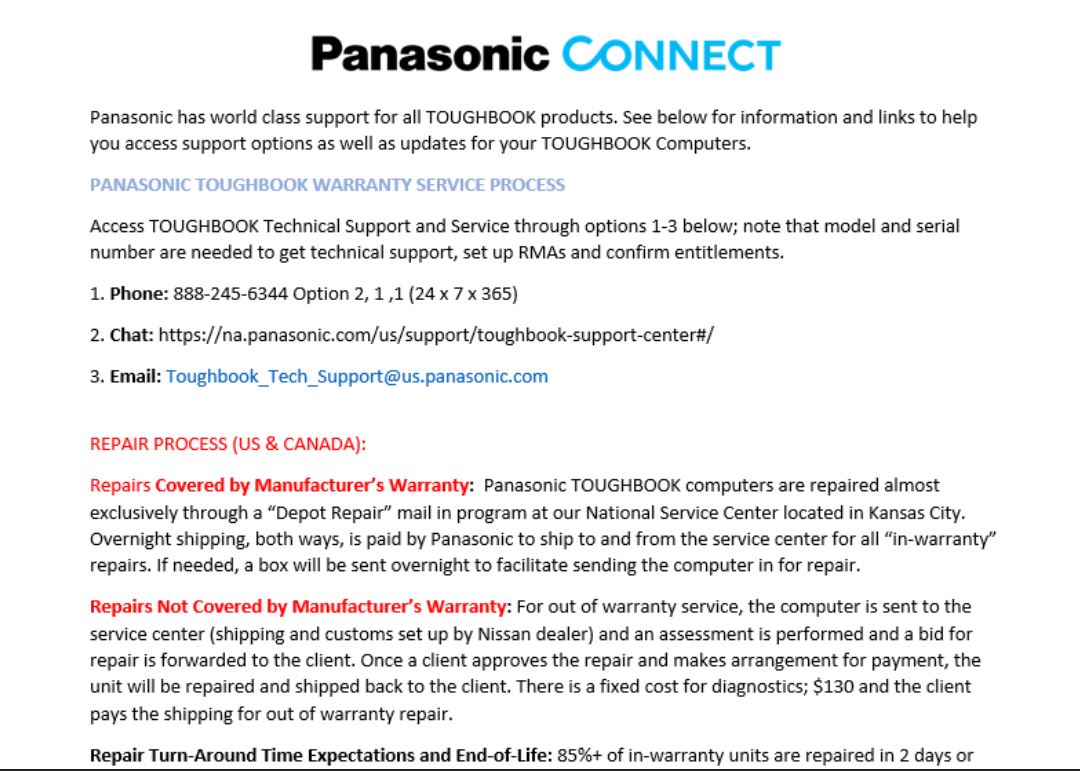
1  | Service Center Support for FZ-55 Purchased from TechMate |
| |
| | |
|
| | Download: Click here for contact information |
|
 top of page top of page |
| 2 | Can Now Update CONSULT PC to Windows 11 |
| |
| | Microsoft Windows 11 fix for connecting your VI3 to the CONSULT PC over the point-to-point wireless interface.
A fix has been established, and it is now ok to apply the Windows 11 update to your CONSULT PC. Click on link below for details or go to CONSULT Support Items under VI3 section. |
|
| | Download: Nissan - Windows 11 and VI3 Wireless Details |
|
| top of page |
| 3 | End of Support for Historical CONSULT Toughbook Units and Non-Certified Devices - See bulletins listed for additional Information |
| |
| | Non-Certified Toughbook devices, along with the certified CF-18, CF-19, and CF-54 models, are no longer supported.
Please review the following notices for full details and guidance on transitioning to supported hardware:
NSIB23-018 – 3:1 Ratio Policy (and OST information) Nissan Bulletin Announcement Reference: NSIB/23-018
ISB23-011a - 3:1 Ratio Policy (and OST information) Infiniti Bulletin Announcement Reference: ISIB/23-011a
NSIB25-006 – Windows 10 Support Ending Nissan Bulletin Announcement Reference: NSIB/25-006 |
|
| top of page |
| 4 | PC consistently prompts to complete the PC's Serial Registration |
| |
| | Bosch requires that the PC Serial be Registered. Users will see pop up from Bosch until this has been completed.
Reach out to your Service Manager to create/login into with the Shop's Email to complete this process.
If having issue completing, contact Bosch Support at 877-503-4832 |
|
| top of page |
| 5 | Panasonic FZ-55 Hard Drive Recovery Instructions: TECH MATE Purchased PC only |
| |
| | Follow the Windows 10 disk recovery
instructions on page 148 (Reset your Computer Section) of the guide below. Create a Recovery Disc instructions on page 14 (Create a Recovery Disc Section) .
Download: FZ-55 Operating Instructions Guide |
|
| top of page |
| 6 | Advance VI3 wireless troubleshooting steps |
| |
| | 1. Ensure that the VI3 fob (dongle) is connected to the computer
2. Go To Device Manager > network adaptors > uninstall Dlink by right clicking on it > select check box to remove drivers
3. Uninstall c3+
4. Delete C3+ folder form C:\drive
5. Reboot computer
6. Run ASIST Synchronizer Manual update
7. Install c3+ (both updates)
8.Open VCI manager and run Recovery (see video below)
Video Step-by-Step VI3 Recovery in VCI Manager (Turn up Volume) |
|
| top of page |
| 7 | Flicker Update for Panasonic FZ-55 |
| |
| | |
|
| | Download: Flicker Update for FZ-55 |
|
| top of page |
| 8 | Key Fob Registration or Immobilizer ECU Replacement Failure |
| |
| | If you experience a failure in key fob registration or immobilizer ECU replacement, please restart your computer and install CONSULT-III plus v214.21 for the fix.
• 2020-2022 MY Sentra (B18)
• 2021-2022 MY Rogue (T33)
• 2022 Pathfinder (R53)
• 2022 QX60 (L51)
|
|
| top of page |
| 9 | B18 Sentra, T33 Rogue, R53 Pathfinder: Error SDCER003 or Error VDA0003 |
| |
| | If CONSULT displays this code during key registration,
Contact TECH LINE |
|
| top of page |
| 10 | CONSULT-III plus: OPERATIONS MANUAL Viewing issue |
| |
| | CONSULT-III plus Operation Manuals will not
open for viewing if Google Toolbar is
installed on your browser. The CONSULT-III
plus Operation Manual requires IE11 without
Google Toolbar. |
|
| top of page |
| 11 | CONSULT-VI is not opening Login page or reading VINs/not allowing manual input. |
| |
| | Ensure that all URLs are whitelisted through the firewall, Anti-virus software and on the PC internet settings. |
|
| top of page |
| 12 | CONSULT-III plus Reprogramming or Immobilizer: Does not accept the User ID/password |
| |
| | Because of Daylight Savings, the computer's
date and time may be incorrect. Please verify
that the computer's date, time, and Time Zone
are correct for your area. |
|
| top of page |
| 13 | CONSULT-III plus Re/programming – Data Transfer from PC to VI2 Fails |
| |
| | The following instruction can be followed to address this issue.
Uninstall and reinstall the CONSULT-III plus software per the following instructions.
1. Uninstall the CONSULT-III plus software “Consult III plus” from the Programs list.
2. Launch the Synchronizer
3. Select ‘view settings/details’
4. Select ‘software update’
5. Select and install the C-III+ 1st update and verify that you receive a ‘Finished’ button at the end of the install (NOTE: If there is a s/w patch, do not install at this time).
6. Power up the VI2 and launch the C-III+ app and verify that the VI auto connects.
7. Try procedure again.
If procedure works and there is software patch, follow below instructions:
8. Close the C-III+ app.
9. Launch the Synchronizer
10. Select ‘view settings/details’
11. Select ‘software update’
12. Select and install the C-III+ 2n update and verify that you receive a message ‘Installation Succeeded’ at the end of the install. |
|
| top of page |
| 14 | CONSULT-III plus Installation Interrupted Message Version 201.1 or higher |
| |
| | Print attached document before restart instructions. |
|
| | Download: Installation Interrupted Instructions |
|
| top of page |
| 15 | CONSULT-III Plus: Not able to install Software Update |
| |
| | Error msg - The setup file of the installation
does not specify disc space needed by product.
The installation will exit.
Solution - Free space is low. You will need to
delete unused files and run the disc cleanup
and defragment utilities before trying the
update install again. |
|
| top of page |
| 16 | CONSULT-III plus: Software will Not Launch and No Error Message. |
| |
| | Restart the PC and then try launching the
CONSULT-III plus again .
If the CONSULT-III plus still does not launch
after restarting the PC, try launching from the
C:\consult_plus\system\application\bin\consult4.
exe
|
|
| top of page |
| 17 | CONSULT-III plus: Unable to install the CONSULT-III plus update or GT-R CSP Software |
| |
| | You will need to uninstall and reinstall the
CONSULT-III plus software first.
1. Uninstall the CONSULT-III plus
software “Consult III plus” from the Programs
list
2. Select the CONSULT Updates message box pop-
up (located on the bottom of monitor), or open
up ASIST Synchronizer, click View
Settings/Details button, select CONSULT-III
plus software from the list and
click “Install”
Note: If you cannot run the installation,
click the “Re-Download” button to redownload
the application, then click “Install” button
3. Now select the CONSULT Supplement or GT-R
software update and click “Install”
|
|
| top of page |
| 18 | CONSULT-III plus: GT-R CSP Software installation fails during registration process |
| |
| | If the GT-R CSP Software installation fails
during the registraton process you will need
to contact ASIST Support Hotline. |
|
| top of page |
| 19 | CONSULT-III Plus Error Code: R112 and/or C9004 |
| |
| | Received error code, R112 and/or C9004 using CONSULT-III plus on Windows 7 unit
If workstation is Windows 7 operating system, please try repair on a Windows 10 unit. If the repair is successful on your Windows 10 unit, please upgrade your Windows 7 to Windows 10. Windows 10 upgrade information can be located on the ASIST Home Page, section Latest News Click Here. |
|
| top of page |
| 20 | OCS - 64 bit Driver Download - Do not Use Unless Directed by ASIST Support! |
| |
| | Do not use unless directed by ASIST Support. |
|
| | Download: 64-bit Driver Install File |
|
| top of page |
| 21 | OCS Recall and/or CONSULT-III Plus Software Troubleshooting Support |
| |
| | A. If your issue is related to the latest OCS
or ACU USB connection or VI2 connection issues
listed is information that may help:
1. Please ensure that you ASIST workstation
has been updated as of end of day.
2. Please ensure that you have the latest
CONSULT-III plus software version.
3. Restart computer is required after C-III
plus install.
Note: After installing C-III plus do not
connect USB cord between the software
4. Take Consult-III plus and VI2 to a
vehicle and install the VI2 to the Data Link
Connector (DLC).
NOTE: The Consult-III plus and the VI2
(Must be Wireless Mode)
5. Turn the vehicle ignition to the ON
position.
6. Double click the CONSULT-III plus Icon
on the desk top to open
7. Allow VI2 Firmware to automatically
update in Wireless Mode.
8. Once the Firmware update is complete,
the window will close automatically.
Important: Do not touch the vehicle,
Consult-III plus or VI2 while the VI2 Firmware
is updating.
9. Verify the VI2 is communicating
properly in Wireless Mode.
10. Install a USB cable between the VI2 and
the Consult-III plus.
11. Verify the vehicle ignition is in the
ON position.
12. Click the “OK” button in the open
window to switch the VI2 from wireless to USB
connection.
13. If the VI2 is communicating in USB Mode
then VI2 and USB connection should be fixed.
B. If you are receiving a system error when
using the OCS software, please uninstall and
reinstall the Airbag ECU software, see below
for instructions:
1. Go to Uninstall under “Programs and
Features” from Control Panel/Programs menu
under Windows.
2. Locate “Airbag ECU Reprogramming
Software” and select
3. Locate and select the “Uninstall”
4. After uninstall is completed, the ASIST
Synchronizer message will pop-up to install
software, or go to the “Software Update
Utility” under the ASIST Synchronizer
5. Select “Airbag ECU Reprogramming
Software….” and install.
6. If you need further assistance, please
contact NNA Tech Line.
C. If you are receiving the following ACU
error message "ECU part # is not supported",
it should be "this vehicles has already been
updated." Software may be updated to fix this
issue asap.
D. If the OCS or ACU recall campaign menu
links are not displaying on your ASIST
application, the latest CONSULT software 61.10
version must be installed. |
|
| top of page |
| 22 | Windows 10 - Vehicle Interface (VI) will not connect to CONSULT-III plus while using USB cable |
| |
| | Print attached document before completing VI
connection instructions. |
|
| | Download: VI USB Cable Connection Instructions |
|
| top of page |
| 23 | VI3 will not connect to the laptop, but using the USB cable will connect |
| |
| | 1. Reboot the PC
2. Upon the Reboot, uninstall the C-III+ from the Add/Remove Programs and verify that the C-III+ is actually removed from the list of app.
3. Delete the c:\consult-III_plus folder
4. Clear the windows temp folder, in Windows search box type "Delete temporary files", locate and click "Temporary Files", and "Temporary Files" will be checked - can uncheck the other items. Then, click "Remove Files"
5. Run a disc cleanup
6. Reboot the PC
7. Launch the Synchronizer and run Manual Update. After update completes, select ‘view settings/details’
8. Select ‘software update’
9. Select and install the C-III+ 1st update and verify that you receive a ‘Finished’ button at the end of the install
10. Verify that the VI3's Wireless FOB is connected and has a blinking green LED
11. Connect the VI3 to the PC with the USB cable and vehicle. Launch the VCI Manager and verify a successful connection with cable and then Wireless. Reconnect the VI3 and USB cable. Launch the C-III+ app. Verify a connection via the USB cable. Close the C-III+ app.
12. Remove the USB cable and launch the C-III+ app and verify a wireless connection.
|
|
| top of page |
| 24 | Vehicle Interface (VI) locked in Reprogramming Complete mode |
| |
| | With VI connected, launch the CONSULT-III plus
software. VI should show 'Reprmming Compl'.
Close the CONSULT-III plus. Right-click the
Reporting Tool icon in Windows Taskbar and
select 'Reset Device'. Launch the CONSULT-III
plus again. VI should show 'Normal Mode' |
|
| top of page |
| 25 | CONSULT-III plus: Does not detect the Vehicle VIN |
| |
| | Closed the CONSULT-III plus app and then reboot
the PC. After the reboot, re-installed the
latest
CONSULT-III plus app from C:\ASIST\Tools\C3
\C3Plus\(latest version). Verify the
message 'Install Succeeded'. Try the CONSULT-I
III plus procedure again. |
|
| top of page |